Solution Brief
SafeBreach Exposure Validation Platform
Read More
SafeBreach Labs researchers have uncovered a sandbox escape vulnerability in Windows 11 that allows an attacker to achieve escalated code execution and arbitrary write from a low-integrity process with nothing more than a single user click. What makes this research unusual is that it crosses four security domains that rarely appear in the same research, let alone the same exploit. It starts in COM infrastructure, winds through Windows app identity systems, detours into a screenshot utility’s URI handling, pivots through a URI decoding quirk, and ends up inside a browser devtools protocol—none of which were designed with the others in mind, and none of which, on their own, would raise an eyebrow. By exploiting the gaps between these unrelated subsystems, the researchers demonstrated how a low-privileged application can quietly launch a medium-integrity process, inject parameters through a chain of URI redirects, and ultimately achieve arbitrary file write and code execution by connecting to a WebSocket debugging port that was never meant to be there. The “Click Or Trick” vulnerability was assigned CVE-2025-59199 with a CVSS score of 7.8 and patched in October 2025.
When people think about different sandboxing techniques in major operating systems, Windows Mandatory Integrity Control (MIC) likely isn’t at the top of the list. Even though this feature has existed since Vista, it appears to be overlooked and little information or research is available regarding it.
As defined by Microsoft, MIC: “provides a mechanism for controlling access to securable objects. This mechanism is in addition to DACL [discretionary access control list] and evaluates access before access checks against an object’s DACL list are evaluated.”
This simply means that there is another layer of protection access between processes and tokens that are running under the SAME user/principal. Many know this feature simply as “Integrity Levels.” There are multiple levels of integrity:
Even though you don’t hear about the MIC feature often, many applications like your Chrome browser use it to protect you in case their process was compromised by a malicious actor.
Low-integrity seriously limits a process, but how solid is that boundary really? We set out to identify its precise limits and explore how hard it would be for an attacker to escape it. Spoiler alert: We managed to bypass it!
What follows is the story of “Click Or Trick”, a one-click sandbox escape from a low-integrity process. Below, we’ll dive into the details behind our research process that led us to achieve both arbitrary write and code execution with escalated privileges from a low-integrity application. We will describe how we managed to combine multiple primitives and bugs in order to escape the Windows sandbox and achieve arbitrary write and code execution with escalated privilege. We disclosed the vulnerability to Microsoft and it was assigned CVE-2025-59199 with a CVSS score of 7.8, and we believe there are broader implications of this research for software vendors and users alike.
In order to find a way to bypass the MIC mechanism, we first needed a very detailed list of what a low-integrity application could do and, conveniently enough, Google made a document that lists the different capabilities of a low-integrity app as part of their Chromium documentation.
There are different types of actions that we can accomplish from low-integrity. By scanning the list, we found “COM interfaces with LI (low integrity) launch activation rights,” which seemed like it had potential to allow us to do something that we shouldn’t. Let’s explore why.
COM is a Microsoft standard that enables communication between software components by defining a language-independent binary interface. DCOM (Distributed COM) extends this to allow components to communicate across different machines over a network. For example, if we wanted to programmatically register a task with the Task Scheduler, we could write code to generate a correctly structured XML file and place it in the right Tasks directory, but getting the schema right and handling edge cases is tedious and error-prone. Alternatively, we could use the Task Scheduler’s COM interface to create, schedule, and manage tasks in a structured and straightforward way.
COM has two main registration types:
We set out to find interesting COM objects that we could use from low-integrity. We used OLEViewDotNet, which is a great tool to examine the different COM objects that are registered in one’s system, and it has a useful category called AppIDs with IL (Integrity Level).
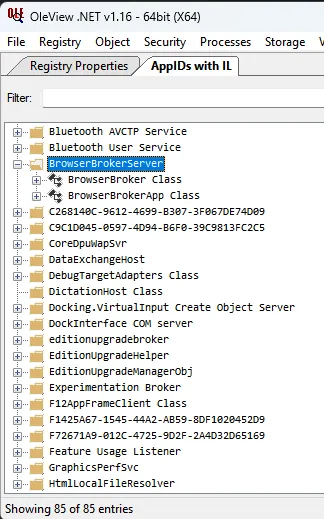
Before we dive into the category and start hunting for interesting COM objects, let’s explain a bit about what AppID means in this context. AppID is essentially a way to group configuration options for a group of COM objects that belong to the same application. So, one AppID would contain several COM objects that have the same configuration. Note in the example above how the BrowserBrokerServer AppID has two COMs inside it, and they share a configuration.
Back to the AppID category in OLEView. This category contains different AppIDs, each containing several COM objects. Each group has its own flags configured. Hovering over a group will display the configuration.

The “Flags” field is where things get interesting. Let’s take a closer look at what it controls. According to the official documentation, AppIDFlags is a set of values that control how and when a COM server is activated.
Wait, activation? Launching? What are those? “Activation” refers to the process of creating and initializing a COM object instance. “Launching” refers specifically to starting the COM server application (process) that hosts the object – this step only applies to out-of-process (LocalServer32) servers, since InProc servers are simply loaded as a DLL into the calling process.
Back to the AppID Flags. According to the official docs, there are 15 of them:
However, at the time of writing this article, only three of them were actually documented. The undocumented ones seemed much more interesting.
We took a look at one of them: APPIDREGFLAGS_IUSERVER_UNMODIFIED_LOGON_TOKEN
The flag hints that the COM server will be launched without any modifications that were previously done by the operating system on our token, using the session user’s original logon token. A low-integrity process carries the same user SID as a medium-integrity one, but its lower integrity level restricts what it can access, effectively sandboxing it without changing its identity.
If we could activate a COM server that launched with the user’s unmodified logon token – the original medium-integrity one, from a low-integrity context…You can already tell why this would help us.
We scoured the category for a few hours looking for interesting candidates that have the flag set. There were a lot of COMs, so we decided to narrow our search to ones that had a built-in Type library (basically, symbols for the COM’s interfaces).
We continued to search while filtering for the desired COM object and we stumbled upon an interesting one: editionupgradebroker.
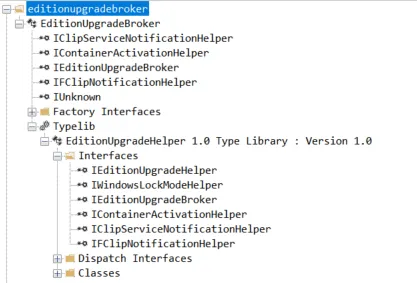
editionupgradebroker is an AppID (and COM object by the same name) that seemed related to Windows upgrading; however, we chose it mainly because it had both of the parameters we hoped to find: it has a TypeLib and had the flag APPIDREGFLAGS_IUSERVER_UNMODIFIED_LOGON_TOKEN set.
Now we needed to check our hypothesis regarding the flag. We needed to create this object from a low-integrity process and check if the process that was launched (the process that hosts this COM) resulted in a process that had a “Medium” integrity token.
We wrote a quick program that created this COM object and, conveniently enough, PsExec had a way to launch a program in low-integrity using the “-l” flag. And…creating this COM object from a low integrity process actually resulted in a Medium integrity server process!

Notice we hadn’t done anything yet except observe that we could launch this COM in Medium integrity from a Low integrity process. This is important because it means that any action from this process will result in Medium integrity level actions or (new) processes, so we may have found our first step towards our sandbox escape.
Let’s examine this object functionality. We can start by looking at the TypeLib because it can give us a lot of hints about the functionality of this object.
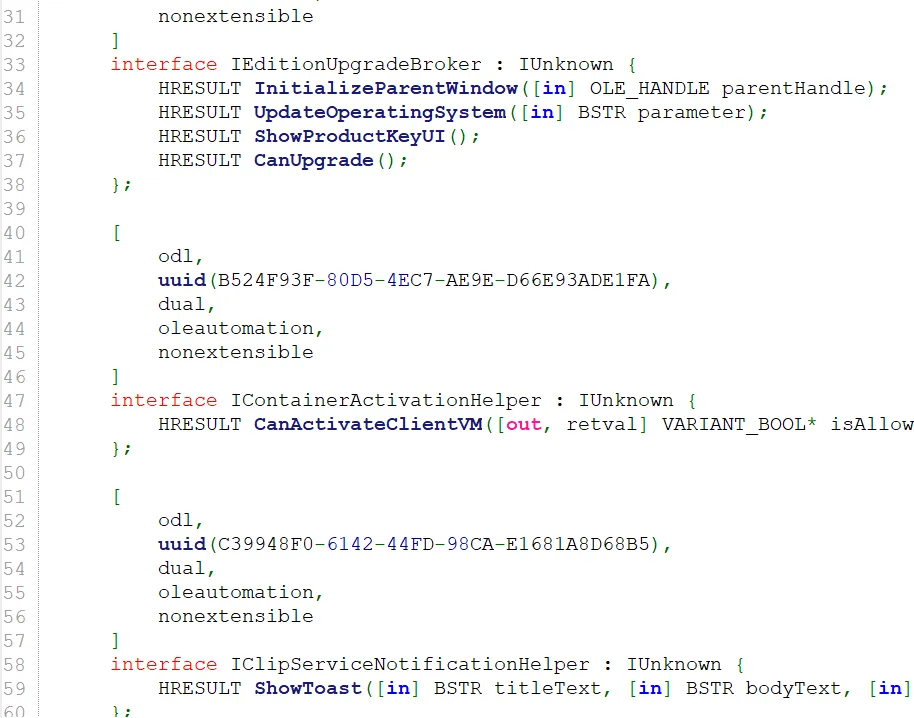
While there were a number of items packed into this object and its interfaces, one specific function caught our eye: ShowToast.
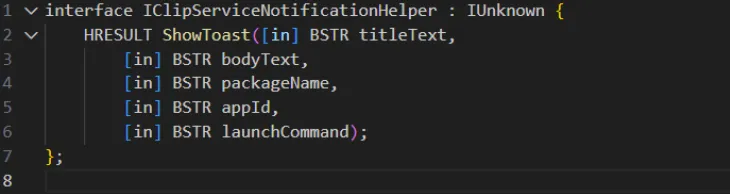
From the name of the interface and the function itself, we assumed this function probably pops a toast notification. But, most importantly, we noticed we could control two important parameters: AppID and launchCommand.
We experimented with the function, trying combinations of parameters, but nothing of interest happened. After a bit of reverse engineering, we discovered that the AppID parameter is actually a Windows App ID, a unique ID that “modern” apps have such as UWP, MSIX, and other apps that are mainly downloaded from the MS Store. And it helps Microsoft to identify and differentiate applications for various use cases like telemetry, for example.
There are multiple techniques to list those IDs, but we decided to look under HKCR in the registry. The different applications have a prefix of “Appx” and then some unique identifier.
Under their unique key, the application has a sub-key named “Application” and this sub-key has a value of “AppUserModelID.” This value is the AppID parameter that the ShowToast function from earlier asks for.
To continue our little adventure, we coded a little tool named “Toaster” to help us invoke notifications. Utilizing Toaster, we started with the obvious act of trying to invoke a toast notification on behalf of another program using the IDs we found in HKCR.
We filled a proper `appId` and filled the other fields with dummy, but easy to recognize, data. We quickly found out that we could invoke notifications on behalf of MS-Teams, Outlook, and even Windows Defender!
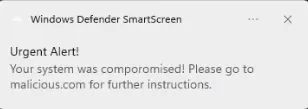
Out of curiosity, we clicked the notification and the application that we were disguised as was launched.
Until this point, we were still not sure exactly what the purpose of the launchCommand parameter was for the ShowToast function. Our attempts to set it to a variety of values resulted in nothing. However, understanding that clicking on the notification would always run the application identified by the provided AppID led us to an interesting idea: maybe, the launchCommand field was being appended to the app’s executable as command-line? And…lo and behold this was indeed the case.
Let’s summarize a bit:
This is impressive, but in order to escape the sandbox (our original goal), we still need to find an application with a command-line that would enable us to execute code of our own.
Let’s explore further. We had a lot of applications that we could run, and after running some of them using the combination of the appId and the launchCommand parameters we noticed that not all of them were running with our command-line appended.
After taking a quick look at the differences, we found that under their Appx in HKCR that we mentioned before, we saw that they have a sub-key named “shell.” In some of those applications the key had a “PackageRelativeExecutable” and a “Parameters” value, while others did not.
The applications that have those values are the ones we can execute AND append a command-line to. Remember the fact we can append a command-line does not mean we execute code of our own; we can just interfere with the command line of the launched program for now.
After a quick search, we found that Winget (a built-in package manager since Windows 11) was one of the programs we could append a command-line to. We tried to invoke a notification that would install PsExec using Winget on click. And…it worked! Winget was launched with our command-line switches and installed a program of our choosing while we ran with low-integrity.

Again, this is impressive, but it still does not solve our problem completely. As an attacker, we could expect only one click and this click should be lethal. Installing a program is great but it is not arbitrary code execution. We needed to continue our adventure and search for a better candidate.
Let’s go on with our routine:
This took quite some time, but eventually we encountered an interesting, unexpected program: Snipping Tool. Snipping Tool is a utility to screenshot your screen, It comes built-in with Windows and it’s not new. But apparently since Windows 11, this tool got a make-over: it is now a Windows app – not an ordinary executable – and it has some interesting new features.
One of those features is the URI parameter (“/uri”). Application URIs are a relatively new way to interact between two processes compared to the traditional ways we know. They are remarkably similar to app intent URIs in Android and are essentially providing applications a way to invoke each other and pass information between themselves.
We regularly use them without even knowing it. They are, for example, what lets you join a Zoom meeting with all the correct details right from your Chrome browser. They are truly convenient and make our lives a lot easier as regular-everyday users.
Back to our buddy Snipping Tool. The executable of Snipping Tool has a command-line switch named “/uri”, which we could use to launch the application with one of the Snipping-Tool supported URIs (ms-screenclip: and ms-screensketch). This simulates calling the app from another application using a URI.
If an application wants to call Snipping Tool, it will use ms-screenclip from within itself and the “/uri” command line switch simulates this. The URIs of ms-screenclip and ms-screensketch are both documented.
If you carefully look at the documentation, you might notice something super interesting: Snipping Tool provides the “discover” endpoint as part of its URI scheme. This discover endpoint has an argument named “redirect-uri.” If we look at the provided example:
ms-screenclip://discover?redirect-uri=my-snip-protocol-test-app://response
The documentation describes it as “Callback URI where Snipping Tool sends the capture response”, so SnippingTool has a “callback” functionality that sends some info back to an application of our choice, and in order to do that, the application needs to be launched!
This is excellent! This could potentially let us open an application of our choosing if we provide the correct /uri command-line switch in combination with the correct URI scheme. This means that on notification click we would be able to launch a registered URI with Medium-integrity context!
Let’s recap:
We essentially found a way to execute an application of our choice using the Snipping Tool application and its weird, permissive command-line switches. But which URI should we run? There were a lot of URIs registered in Windows by default and some of them even had vulnerabilities in the past (e.g. Follina – CVE-2022-30190). But perhaps the most known URI – and the one we just can’t ignore – is the “file://” URI, which lets us treat a file just like a URI endpoint.
So next, we tried to execute a malicious file using the knowledge we had gathered up to this point. First, we ran calc.exe. The full launchCommand we used looked like this: “/uri ms-screenclip://discover?redirect-uri=file:///C:/Windows/system32/calc.exe.”
And…nothing happened. Why? Before diving into why a native executable can’t run using the file:// URI, at least in our scenario, let’s try something else. Next, we tried to run an interpreted program like Python (or Java).
Just like before, we simply changed the provided file:// from the calc.exe path to a Python script that used os.system to execute charmap.exe, and, just to be sure we are running from Medium, it also writes a file to a non-accessible folder (C:\temp).
But wait – this is cheating! Sandboxed applications can’t write the script to the disk! Where would you bring the script from? Well, mostly correct, but we have ONE place that can be used to store files even from low-integrity applications. The LocalLow folder in AppData. And we could use it to store a malicious python file on the disk.
We wrote a quick python script:
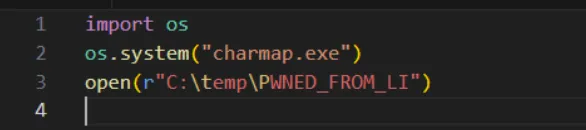
Then saved it as pwn.py under the LocalLow folder and executed our same launchCommand again. And…et voilà!

Our code was executed in Medium integrity – we managed to write to an un-sandboxed folder AND execute a process in Medium integrity. We did it! We escaped the sandbox and, although it requires one click from the user, the fact that the invoked application is a trusted one like Snipping Tool makes the scenario quite likely.
But why didn’t the executables run? We looked through the code and we encountered a bug! A simple bug was the only protection against using a native shell scripts or executables. Let us explain.
After we realized that some types of files like native EXEs and Batch scripts could not be executed by launching a file:// URI, we dug deeper to understand the root cause of this behavior. We assumed (partially-correctly) that this was the result of some mitigation that Microsoft had added in order to block certain filetypes from executing. After reversing some DLLs, we did find such a check in Windows.System.Launcher.dll. It looked like this:
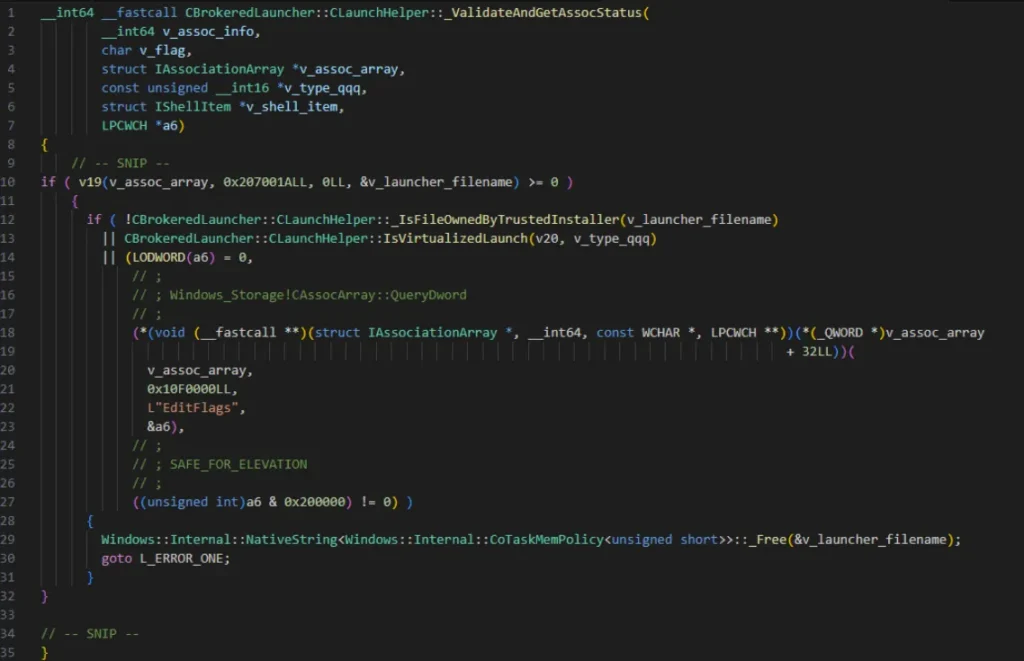
This is a bit messy, so let’s explore what is going on. There is a function named CBrokeredLauncher::CLaunchHelper::_ValidateAndGetAssocStatus. The function is called when we call a URI file and it is responsible for a few security checks. Let’s exhibit each one of them:
At first, we thought that the ownership check was done against the file we specified, but we quickly realized by debugging the program that this was NOT the case. Instead, the ownership check is done against our file’s interpreter. In other words, the executable that is responsible for launching a specific file extension – the same file extension that is being checked for the matching EditFlags. Windows will look at the registry for all the details it needs in order to perform the check, and will return the result.
For example, in the case of .hta file, Windows will check which filetype is associated with this extension and will conclude that .hta extension files are of type htafile. The launcher of htafile is, apparently, hh.exe.
This can be deducted by looking at the registry under /htafile/shell/open, so the function call will look like this: _IsFileOwnedByTrustedInstaller(“hh.exe”). And the result will be: Yes. hh.exe is owned by TrustedInstaller, and we will fail the check.
But…we tried to execute an executable file, remember? Who owns the interpreter of executables? Executables have the .exe extension of-course, and by looking at the registry, this extension is associated with the exefile filetype.
The exefile type doesn’t really have an interpreter. EXE files run on their own right? They don’t need Python or Java to run them. Therefore, their value for the “shell/open” subkey is set to just “%1” instead of “<interpreter> %1 %2”. Is this the very reason for the bug? Because the file that _IsFileOwnedByTrustedInstaller checks is the file mentioned in the beginning of the “shell/open” subkey value. So, what is the file that is being checked in the case of the exefile type? It’s “%1” , but a file named “%1” simply doesn’t exist.
But this was an assumption, so we tried to execute a file:// with an executable and examine it with Procmon. We could not believe our eyes:

We were failing the check because Windows is checking for an unknown “%1” file! Now, we know why we can’t run executables, and we also can’t “fix” the bug because we don’t have write permission outside the sandbox.
Maybe we could have used our primitive in order to achieve write but this would require two notifications: one for writing and one for executing the exe. But as we said before, we are aiming for one, lethal click.
So what do we actually need now? Since Java and Python files do require interpreters, we have a way to execute code using them. But even though those programs are very popular and common, they are not pre-installed programs. We needed to find another way to execute code in order to escape the sandbox.
Our options were to :
We explored each of these options and concluded that the third one was the most likely to result in a quick “solution” to the problem. So we tried to list all the URIs that registered on the computer. In order to do this, we could search the registry for keys with the “URL Protocol” value.
It turns out that there are dozens of those, for example: windowsdefender, windows-feedback, and even ms-calculator! You can try them yourself by opening a “Run” window and executing each of those followed by columns.
In order to understand the potential of opening such URIs, we used Procmon to examine what happens when we open them with dummy parameters such as windows-feedback:something. We realized that each time we executed a URI in this way, the executable associated with the URI is simply launched with the URI as the first argument.
For example, if we run MS-Teams using its ms-teams URI with something as a parameter, the OS will launch: ms-teams.exe ms-teams:”<uri-parameters>” (including the quotes).
This gave us an exciting idea: maybe we could achieve a sort of “command injection” in the form of adding command-line switches to a program through its URI. Maybe we could somehow “close” the URI parameter using a ‘ “ ’ character and a space character to add an additional command-line switch.
You may have already understood which program we chose because of the foreshadowing. There are dozens of other URIs, but we chose MS-Teams.
Why did we choose it? Well, it turns out that the MS-Teams application is actually a Chromium app, and for some reason the –remote-debugging-port parameter of Chromium was left available as a command-line switch for MS-Teams. Even though this is not a security problem per-se, it does give us a much larger attack surface to work with because of Chrome DevTools Protocol (CDP).
CDP is a way to interact with an instance of a Chromium browser programmatically over a websocket in a specified port. It gives developers tens of different requests to choose from in order to control Chromium and set different settings for it.
Before launching, our “parameter injection” attempt should be URI encoded, because it goes through a URI decoding process – something that we understood after a few failed attempts and looking at Procmon, so the “injection” would be %22%20 – which translates to “quotes and space”.
We launched a Snipping Tool notification with the following launchCommand: /uri \”ms-screenclip://discover?redirect-uri=ms-teams:something%22%20–remote-debugging-port=9090.
Next, we checked with Netstat to see if something listened on 9090 and realized the “parameter injection” worked!
Up to this point, we had chained multiple bugs and achieved the opening of ms-teams with a debugging port using a click all the way from a low-integrity process.
Now let’s explore CDP. We skimmed the different commands at Chrome DevTools Protocol Docs and realized there were no low-hanging fruit as we thought. But then we had an idea as we scouted the list of available commands. We saw one interesting option: Browser.setDownloadBehavior.
This command has the following structure:
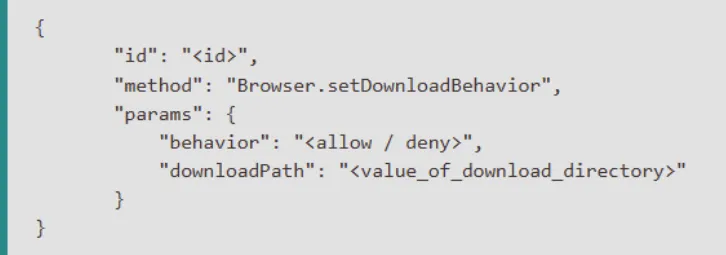
What if somehow we could manage to set the downloads directory to a directory of our choice, then download a file to there? We would achieve an arbitrary write! Great. We had all the ingredients, but let’s stop for another recap.
Our objective was to successfully escape the sandbox. We needed to write or execute something outside the sandbox in order to do so. We managed to successfully execute code and write something outside the sandbox using Python, but we wanted to remove this dependency.
To test all the parts, we needed to:
When we checked…

Awesome! We achieved arbitrary write from a low-integrity application, using only native tools and apps that are available on any installation of Windows 11.
We managed to combine multiple primitives and bugs in order to escape the WIndows sandbox, and achieve arbitrary write.
NOTE: The recording shows two CMDs, however, it is only because it was easier to demonstrate; an attacker could easily do this from the same process.
When it comes to our original research, SafeBreach is deeply committed to responsible disclosure. In line with that commitment, we notified Microsoft of our research findings on July 13, 2025. It was assigned CVE-2025-59199 with a CVSS score of 7.8 and was patched on October 14, 2025.
This research demonstrates the dangers that hide in the current practice of introducing too many complex applications as part of an operating system. Every dependency and application shipped with your product – whether an operating system, an application, or a website – expands the attack surface and should be reviewed accordingly.
For more in-depth information about this research, please: